
Data grouping
Setting grouping in rows and columns of a table.
To set up grouping rows in a table, you must correctly fill in the OutlineLevel and OutlineNodeCollapsed properties of the TXlsFileRowEh class in the Worksheet.
Rows collection or Worksheet.Columns if you are grouping columns.
OutlineLevel sets the grouping level of the entry.
In the screenshot below, the values that must be assigned to the OutlineLevel property for each table record are indicated in red.
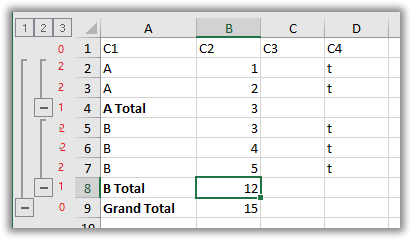
Rows 1 and 9 have grouping level zero.
Record number 1 is a table header and does not participate in the grouping.
Record number 9 is a level 1 group heading. The level heading must have a value in OutlineLevel one less than the level of the group it describes (Group Heading 1 - 1 = 0)
Records 4 and 8 are headers for the level 2 group. Accordingly, `OutlineLevel contains the value 1.
For records 4, 8 and 9, you can also specify that the group is collapsed. To do this, set the OutlineNodeCollapsed property to True. In this case, also, for records that are included in the collapsed group, you must set the Visible property to False.
If the group header records are above the group, then the TXlsWorksheetEh.OutlineRowsSummaryBelow property must be set to False.
The OutlineLevel and OutlineNodeCollapsed properties for the TXlsFileColumnEh classes are filled in the same way when grouped by columns.