
Language resources
Language resources
Introduction
Traditional Delphi localization relies on resourcestring declarations and maintaining separate .dfm files for each form and language. Starting with version 9, EhLib introduces its own advanced resource management system that simplifies multilingual support.
EhLib allows language data to be either:
- Embedded directly into the executable as
.dfm-style resources, or - Stored externally as separate files alongside the application.
Additionally, EhLib supports embedding a default language directly into the library. This eliminates the need for additional localization configuration in host applications.
When installing via the EhLibInstaller.exe utility, you will be prompted to select the default language to be compiled into the library.
Localization Options
1. Using the Default Embedded Language
If all your applications will use only a single language, the simplest approach is to change the default language embedded in EhLib. In this scenario, no additional configuration is required in your projects.
Using
EhLibInstaller.exe: The installer will prompt you to select the default language during the setup process. In this case, the utility automatically modifies the EhLib source code to set the selected language as the library's default.Manual/Lazarus installation: You will need to modify specific source files and recompile EhLib package(s). How to do this is described below.
Changing the default library language:
Copy the file
Src\Rtl\EhLibLangConsts.XXX.dfmto the fileSrc\Rtl\EhLibLangConsts.dfm, located in the same folder.Replace the first line of the file EhLibLangConsts.dfm with the line
object EhLibLanguageConsts: TEhLibLanguageConsts
so that the file contents will look like this:
object EhLibLanguageConsts: TEhLibLanguageConsts
  Language = 'French'

  ClearSelectedCells = 'Do you want to clear the selected cells?'
  ...
end- Recompile the library packages
2. Using Embedded Resources for Runtime Language Switching
To enable dynamic language switching in your application, follow these steps:
- Link the required language
.dfmresource files during compilation. - Configure EhLib to use embedded resources.
- Load the list of available languages.
- Set the initial language code.
- At runtime, change the language code to dynamically reload the localized strings.
Implementation Steps
Add EhLibEmbeddedLangConsts and LanguageResManEh to the uses clause of your project's main unit:
EhLibEmbeddedLangConstscontains directives that, at the project compilation stage, embed language resource files into the executable for a specific set of languages.LanguageResManEhexposes theTLanguageResourceManagerEhclass, which manages resource loading and switching.
In your application's initialization code (executed once at startup), add the following:
LanguageResourceManagerEh.ResourcePlacement := lrpEmbeddedEh;
LanguageResourceManagerEh.LoadListOfAvailableLanguages('TEhLibLanguageConsts');
LanguageResourceManagerEh.ActiveLanguageAbbr := 'ENG'; // Replace with your 3-letter language code
Determining Available Languages
To see which languages are compiled into your build, inspect the EhLibEmbeddedLangConsts unit and locate the resource inclusion directives:
{$R EhLibLangConsts.XXX.dfm}The XXX placeholder corresponds to the three-letter language codes available in your configuration.
Switching at Runtime
To change the application language while it is running, simply assign a new language code to the manager:
LanguageResourceManagerEh.ActiveLanguageAbbr := 'DEU';EhLib will automatically reload the corresponding resources and update all localized strings in memory.
3. Using External Files for Runtime Language Switching
To configure your application to switch languages using external resource files, follow these steps:
- Copy the required
EhLibLangConsts.XXX.dfmfiles from theEhLib\Src\Rtlfolder to<YourApp.exe>\Res\. - Configure EhLib to use external resources.
- Load the list of available languages from files.
- Set the initial language code.
- At runtime, change the language code to dynamically reload the localized strings.
Implementation Steps
Add EhLibEmbeddedLangConsts and LanguageResManEh to the uses clause of your project's main unit.
In your application's initialization code (executed once at startup), add the following:
LanguageResourceManagerEh.ResourcePlacement := lrpExternalEh;
LanguageResourceManagerEh.LoadListOfAvailableLanguages('TEhLibLanguageConsts');
LanguageResourceManagerEh.ActiveLanguageAbbr := 'ENG'; // Replace with your 3-letter language code
File Structure Example
YourApp.exe
└── Res\
    ├── EhLibLangConsts.ENG.dfm
    ├── EhLibLangConsts.RUS.dfm
    ├── EhLibLangConsts.FRA.dfm
    └── EhLibLangConsts.DEU.dfm
Switching at Runtime
To change the application language while it is running, simply assign a new language code to the manager:
LanguageResourceManagerEh.ActiveLanguageAbbr := 'DEU';Notes & Best Practices
- Language codes follow a standard 3-letter format (e.g.,
ENG,RUS,FRA,DEU). - Ensure all target language
.dfmfiles are properly linked (for embedded) or copied (for external) before deployment. - If a requested language file is missing or was not compiled, an exception will be raised.
- When using external resources, ensure that the
Res\folder is located in the same directory as your application executable.
4. Creating Language Resources for Your Application’s Language-Dependent Constants
You can also use the technology of storing language dependent constants to store the strings of your application.
For this
- Create a class that inherits from TComponent and write in it in the published section whose properties the values in your application depend on the language.
(For an example, see theAppLangConsts.pasfile from the Demo applicationDEMOS\MainDemo\)
  TApplicationLanguageConsts = class(TComponent)
  ..
  public
    constructor Create(AOwner: TComponent); override;
  published
    property Caption: String read FCaption write SetCaption;
    property MenuFile: String read FMenuFile write FMenuFile;
  end;
In the class constructor, load the values of the constants that will be used by default using next code:
  constructor TApplicationLanguageConsts.Create(AOwner: TComponent);
  begin
    inherited Create(AOwner);
    InitInheritedComponent(Self, TCustomControl);
end;- Create a resource dfm file (AppLangConsts.dfm) to store the property values of the class
  object TApplicationLanguageConsts
    Caption = 'EhLib Main Complex Demo'
    MenuFile = 'File'
  end
write the dfm file as the resource of your application
{$R AppLangConsts.dfm}Create files
  AppLangConsts.ENU.dfm
  AppLangConsts.BGR.dfm
  AppLangConsts.CHS.dfm
  AppLangConsts.CSY.dfm
  AppLangConsts.DEU.dfm
...
By analogy with the files EhLibLangConsts.XXX.dfm
- Once in the program code, create a variable for storing resources
FApplicationLanguageConsts := TApplicationLanguageConsts.Create(nil);- Once in the program code, register the resource in LanguageResourceManager
  LanguageResourceManagerEh.AddLocalizableObject(FApplicationLanguageConsts,
       FApplicationLanguageConsts.ClassName, 'AppLangConsts', 'ENU');
The TLanguageResourceManagerEh.AddLocalizableObject method contains the following declaration and parameters.
procedure TLanguageResourceManagerEh.AddLocalizableObject(
  Component: TComponent;
  ResourceName: string;
  ExtResourceFileName: string;
  DefaultResourceLanguage: string
);
Registers a custom component with the language resource manager to enable localization of its published properties.
Description of parameters:
Component: TComponent - Reference to the component instance that contains published properties requiring localization. The properties of this component will be automatically updated when the language changes.
ResourceName: string - The logical name of the resource, typically matching the class name of the Component. This name is used as the object identifier in resource files (e.g., object ResourceName: TResourceName_XXX).
ExtResourceFileName: string - The base filename (without extension or language code) for external resource files. The manager will look for files in the format <ExtResourceFileName>.<LANG>.dfm (e.g., AppLangConsts.ENG.dfm). Used only when ResourcePlacement = lrpExternalEh.
DefaultResourceLanguage: string The 3-letter language code (e.g., 'ENG', 'RUS') of the default language to load before LanguageResourceManagerEh.ActiveLanguageAbbr is explicitly set.
When changing the language, the WM_SETTINGCHANGE event is sent to all forms and controls.
5. Demo projects using dynamic language resources loading
For an example of using built-in and external resources, see the Demo project
DEMOS\LanguageResEmbeddedExternal\Project1.dprIn the Unit1.pas file, you can comment out or uncomment the lines
{$DEFINE EMBEDDED_LANGUAGE_RESOURCES}
{$DEFINE EMBEDDED_LANGUAGE_RESOURCES_ALL}
To change the mode of using resources and understand the difference in working with built-in and external resources.
For detailed information on how to use the specified DEFINE definitions to change the resource usage mode, see the file
Demos\LanguageResEmbeddedExternal\Info.Txt
Another example of the use of dynamic loading of language resources can be seen in the Demo project
DEMOS\MainDemo\Project1.dpr
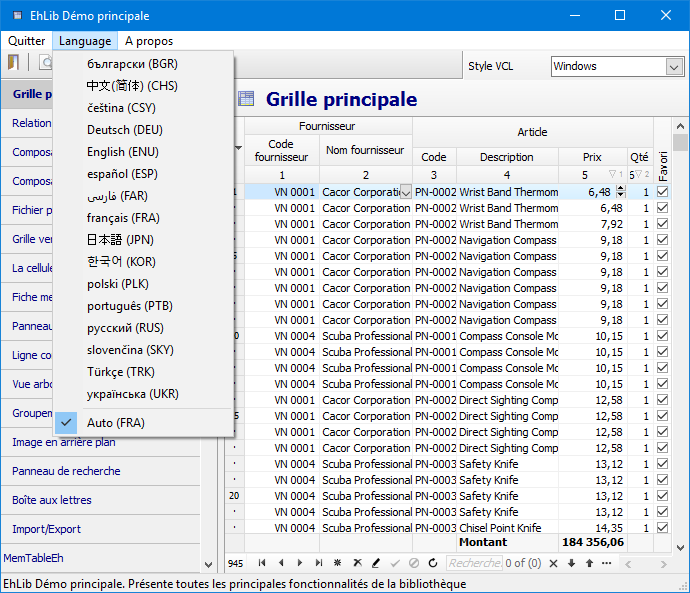
The main methods used in the project for working with language resources are as follows:
procedure AppLangConsts.InitUnit;
Registers the class TApplicationLanguageConsts in which the application's string resources will be stored.
procedure TForm1.InitLanguageRes;
Activates the language from the Ini file if it was selected the last time the program was started.
procedure TForm1.BuildLanguageMenu;
Forms a menu of available languages based on the LanguageResourceManagerEh.LanguageList object
procedure TForm1.MenuItemSelectLanguage(Sender: TObject);
procedure TForm1.ResourceLanguageChanged;